
Editing backup definitions
You can edit existing backup definitions. You can modify any existing backup definition's backup selections or the backup job settings for any backup jobs that it contains. The backup selections include any servers, volumes, or data that you have selected to back up. Backup job settings can include scheduling options, storage device options, or backup methods for selected types of data, for example.
You can also add a stage to an existing backup definition to duplicate your backup data or create virtual machines with your backup data.
If you choose to edit more than one backup definition at once, you can edit only the properties that the definitions have in common. For example, if you choose to edit two backup definitions at once and the definitions use different schedules, you cannot edit the schedules. If you do not see the settings that you want to edit, repeat this procedure, but select only one definition to edit at a time.
Note: You cannot edit a backup definition while one of its backup jobs is running.
This topic includes the following procedures:
To edit a backup definition's backup selections or select user shares to back up
-
Do one of the following:
To edit backups from the Backup and Restore tab Complete the following steps\: - On the Backup and Restore tab, do one of the following: To edit backups for a single server, right-click the server name. To edit backups for multiple servers, Shift + click or Ctrl + click the server names, and then right-click one of the selected servers. - Click Edit Backups . Note: If the server or servers that you selected have multiple backup definitions, select the definitions that you want to edit on theBackup Job Selectiondialog box and then clickOK. To edit backups from the Job Monitor tab Complete the following steps\: - On the Job Monitor tab, do one of the following: To edit a single backup, right-click the job name. To edit multiple backups at once, Shift + click or Ctrl + click the job names, and then right-click one of the selected jobs. - Click Edit . To edit backups from the Storage tab Complete the following steps\: - On the Storage tab, double-click the storage device or storage pool for the backup that you want to edit. - On the Job History pane, do one of the following: To edit a single backup, right-click the backup. To edit multiple backups, Shift + click or Ctrl + click the backups and then right-click one of the selected backups. Note: You can only edit any backup jobs that have previously run from theStoragetab. - Click Edit Backup . -
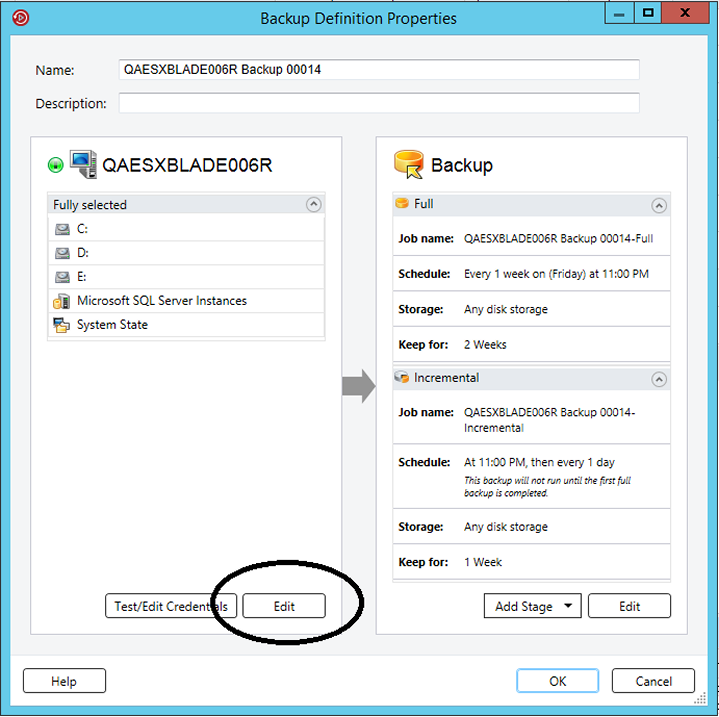
In the Selections box, click Edit.
-
To add additional servers to the backup definition:
-
Click the Add (+) button.
-
Select the server or servers that you want to add to the backup definition. You can also click New Server to add a new server to Backup Exec.
-
Click OK.
-
-
Select the data that you want to back up.
Servers are selected in their entirety by default. If you do not want to back up the entire server, double-click the server name to see all of the contents. Select the check boxes for each item that you want to back up.
Note: Deselecting a server's critical system components creates backup sets that cannot be used for some restore scenarios. SeeAbout backing up critical system components.
-
Click OK.
-
When you are finished editing the backup definition, click OK on the Backup Properties dialog box.
To edit a backup definition's job settings
-
Do one of the following:
To edit backups from the Backup and Restore tab Complete the following steps\: - On the Backup and Restore tab, do one of the following: To edit backups for a single server, right-click the server name. To edit backups for multiple servers, Shift + click or Ctrl + click the server names, and then right-click one of the selected servers. - Click Edit Backups . Note: If the server or servers that you selected have multiple backup definitions, select the definitions that you want to edit on theBackup Job Selectiondialog box and then clickOK. To edit backups from the Job Monitor tab Complete the following steps\: - On the Job Monitor tab, do one of the following: To edit a single backup, right-click the job name. To edit multiple backups at once, Shift + click or Ctrl + click the job names, and then right-click one of the selected jobs. - Click Edit . To edit backups from the Storage tab Complete the following steps\: - On the Storage tab, double-click the storage device or storage pool for the backup that you want to edit. - On the Job History pane, do one of the following: To edit a single backup, right-click the backup. To edit multiple backups, Shift + click or Ctrl + click the backups and then right-click one of the selected backups. Note: You can only edit any backup jobs that have previously run from theStoragetab. - Click Edit Backup . -
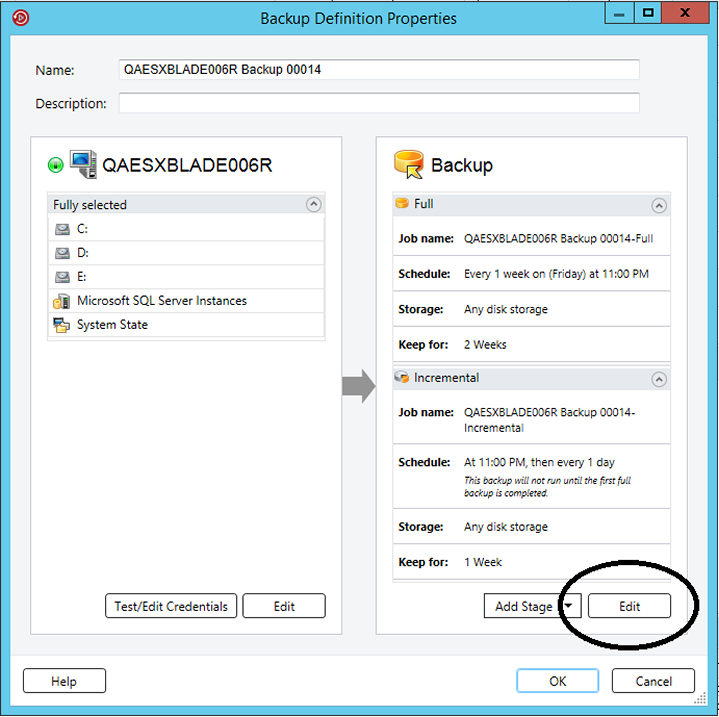
In the Backup box, click Edit.
-
In the left pane, select the backup job setting that you want to modify.
The options vary depending on what you selected to back up.
-
Make any necessary changes.
-
When you are finished modifying any applicable options for the backup, click OK.
-
When you are finished editing the backup definition, click OK on the Backup Properties dialog box.
More Information
Related information