
About selecting data to back up
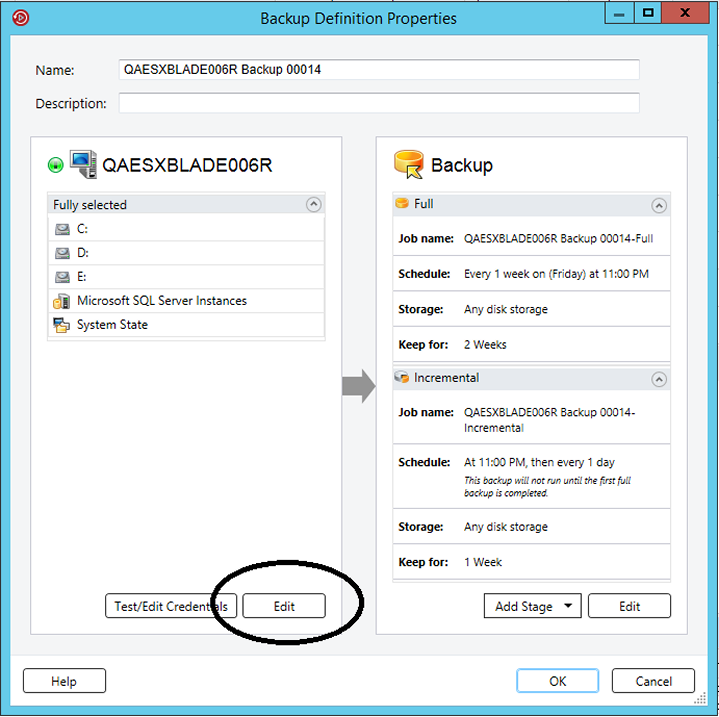
When you back up a server, Backup Exec includes all of the data on the server in the backup selections by default. If you want to modify the backup selections, you can click Edit in the Selections box on the Backup Definitions Properties dialog box.
Figure: Selections box on the Backup Definition Properties dialog box
See Backing up data.
Instead of backing up all of the data on a server, you can select drives, folders, files, System State, network shares, or databases on the Browse tab.
To expand or collapse the view for an item, click the arrow next to it or double-click the item's name. To view the contents of an item, double-click the item's icon. The item's contents appear in the right frame of the backup selections view. You can traverse file levels from either side of the window by clicking folders and subfolders as they appear.
When you browse remote selections, Backup Exec requires a valid logon account to expand the computer contents. If the default logon account does not enable access to a remote selection, Backup Exec prompts you to select another existing logon account. You can also create a new logon account that can access the selection.
To include data in the backup, select the check box next to the drive or directory that you want to back up.
This topic includes the following information:
Tagging resources as business-critical
The Tag as Business-Critical option lets you select which resources are most important to you. When an item is tagged as a business-critical resource, Backup Exec prioritizes the backup of that resource within the backup window before any resources that are not tagged as business-critical. If you tag a resource as business-critical, all of its children are also tagged as critical. When you tag an item as a business-critical resource, Backup Exec changes the icon for that resource in the backup set view and in the restore wizard.
The Tag as Business-Critical option is enabled for the following resources:
-
Windows volumes and UNIX root volumes
-
Exchange databases
-
SQL instances
-
Virtual machine folders
-
Virtual machines
-
SharePoint resources
-
Oracle instances
Note that the Tag as business-critical option is disabled on partial selections. In addition, the option is not applicable to Enterprise Vault resources, such as Compliance Accelerator or Discovery Accelerator.
When an item is tagged as a business-critical resource, it applies only to that job. It is not a global setting. When you tag a server's resource as business-critical and also select other resources from the same server, then the backup priority for the business-critical resource is evaluated in relation to the other resources for that server only. For multi-server jobs, business-critical resources are backed up by the order in which the servers are prioritized, with the business-critical resources for servers at the top of the list being backed up before business-critical resources for the servers that are lower on the list.
Critical system resources can be tagged as business-critical as well. If critical system resources are not selected, then the resources that are tagged as business-critical are backed up before critical system resources if they are in the same backup job. However, the best practice for critical system resources is to back them up in a separate backup job. If you include both business-critical resources and critical system resources in the same backup job, note that system state is always backed up last regardless of whether it was tagged as a business-critical resource or not.
After you tag items as business-critical resources you can use the arrow buttons on the Selection Details tab to change the order in which the items are backed up. However, an item that is not tagged as a business-critical resource cannot be moved ahead of an item that is tagged as a business-critical resource. For example, if you tagged your C drive as a business-critical resource, but did not tag your E drive as a business-critical resource, you cannot move the E drive ahead of the C drive.
Note: During a rolling upgrade, the tag as business-critical feature is not applied to jobs that are delegated to managed Backup Exec servers until the managed servers are upgraded to the most recent version of Backup Exec.
Including and excluding specific files or subdirectories
The Selection Details tab lets you include or exclude files for backups by specifying file attributes. Exclusions apply to all of the jobs in a backup definition.
You can do any of the following on the Selection Details tab:
-
Include or exclude subdirectories. For example, you can choose to back up a parent folder without backing up any folders that reside inside it.
-
Include only modified files. For example, you can choose to back up only the files that have changed since the last backup job.
-
Include only read-only files.
-
Include or exclude files by file name attributes. For example, you can select only files with .txt extensions, or exclude files with .exe extensions from a backup. If you exclude files by an attribute that does not exist, all files of that type are excluded. For example, excludes based on SQL database dates result in global SQL excludes since SQL databases do not have date attributes.
-
Select only any files that fall within a specified date range. For example, you can select any files that were created or modified during the month of December.
-
Specify the files that have not been accessed in a specified number of days. For example, you can select the files that have not been accessed in 30 days from your "My Documents" folder. Then, run a full backup job for which you select the method to back up and delete the files.
Selecting multiple servers or applications
If you select to back up data from multiple servers or applications, you can create separate backup definitions for each server or application. Alternatively, you can create one backup definition that includes all servers and applications. If you create separate backup definitions, it is easier to identify problems when backup jobs fail. Also, if an issue arises with one server that causes a backup job to fail, the other backup jobs can still complete successfully. If you create one backup definition that includes all of your servers and applications, it takes less work to monitor the job's status. You can select a default method for backing up multiple servers in the Backups dialog of the Backup Exec Settings.
Selecting critical system components
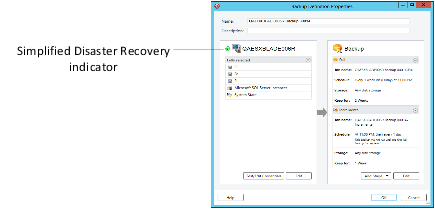
When all the critical system components are included in your backup job selections, the Simplified Disaster Recovery indicator on the selections pane reads ON. If you deselect one or more critical system component files, the indicator changes to OFF.
Figure: Simplified Disaster Recovery indicator is ON in the Backup Definition Properties dialog box
If you deselect any critical system components, it can disqualify your backup data from being used in certain types of restore scenarios.
You must include all critical system components in your backup selections if you intend to use any of the following restore scenarios:
-
Simplified Disaster Recovery
-
Conversion to virtual machines
-
Complete online restore of a Microsoft Windows computer
Using fully qualified domain names in backup selections
You can enter fully qualified domain names in Backup Exec anywhere that you can enter a computer name. In addition, Backup Exec can show fully qualified domain names where computer names are listed.
For fully qualified domain names, the following rules apply:
-
The maximum number of characters for each label (the text between the dots) is 63
-
The maximum total number of characters in the fully qualified name is 254, including the dots, but excluding the \\\
-
The name cannot include the following characters: * | \< \> ?
Veritas does not recommend using both fully qualified domain names and non-qualified domain names. Veritas recommends using fully qualified domain names.
For example, if you have a computer named Test_Computer, you can have two selections for it. One selection is called Test_Computer. The fully qualified selection is called Test_Computer.domain.company.com. In this case, Backup Exec treats each selection as a separate computer, even though both selections are for the same computer. For any backup jobs that use the short computer name, the catalog contains the short computer name. For any backup jobs that use the fully qualified name, the catalog contains the fully qualified name.
More Information
Related information