
Download and install Windows Assessment and Deployment Kit (ADK)
Using the Windows Assessment and Deployment Kit (ADK) you can create a Veritas System Recovery Disk using the Advanced option or setup Lights Out Restore for 32-bit and 64-bit platforms. You can create the advanced Veritas System Recovery Disk for any of the available languages.
Note: If Windows ADK is not installed, when you clickNexton the Environment Options page of the Veritas System Recovery Disk Creator wizard, an error message is displayed. You can continue to create the Veritas System Recovery Disk only after you download and install Windows ADK successfully.
The following information describes the version of Windows ADK that you need to select along with steps to download and install the ADK.
Select the version of Windows ADK
Veritas recommends that you create the Veritas System Recovery Disk using the latest version of Windows ADK that is available (Windows ADK for Windows 10). You can perform a seamless recovery of the latest Microsoft operating systems using a Veritas System Recovery Disk.
Windows ADK for Windows 10 can be installed on following operating systems:
-
Client OS: Windows 7, Windows 8, and Windows 8.1, Windows 10
-
Server OS: Windows Server 2008, Windows Server 2008 R2, Windows Server 2012, Windows Server 2012 R2, and Windows Server 2016
Windows ADK for Windows 8.1 Update can be installed on following operating systems:
-
Client OS: Windows 7, Windows 8, and Windows 8.1
-
Server OS: Windows Server 2008, Windows Server 2008 R2, Windows Server 2012, and Windows Server 2012 R2
Download and install Windows ADK
-
Download and run the Windows ADK for Windows 10.Note: Windows ADK is a Microsoft product and if any errors are reported when you download and install the ADK, contact Microsoft support.
The Specify Locationpage is displayed. By default,Install the Windows Assessment and Deployment Kit - Windows 10 to this computer is selected.
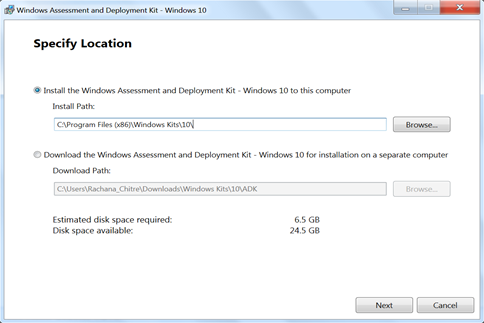
Note: This page also displays the disk space that is required for the ADK kit and the disk space available on your computer.
-
Click Browse and select the installation path.
-
Click Next.
The Windows Kits Privacypage is displayed. By default,Yes is selected.
-
Determine if you want to join the program, and then click Next.
The License Agreement page is displayed.
-
Click Accept.
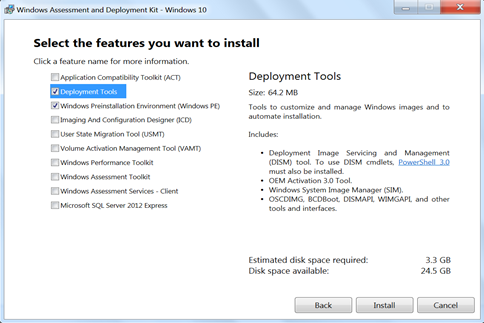
The Select the features you want to install page is displayed.
-
Select only the Deployment ToolsandWindows Preinstallation Environment (Windows PE) check boxes.Note: This page also displays the disk space that is required for the features and the disk space available on your computer.
-
Click Install.
The Installing features page is displayed. You can view the installation progress of the features.
When the installation is completed, the Welcome to the Windows Assessment and Deployment Kit - Windows 10! page is displayed.
Note: You can select theLearn more about the Windows Assessment and Deployment Kitcheck box to view the Windows ADK documentation.
-
Click Close.
To continue creating the advanced Veritas System Recovery Disk, click Next on the Veritas System Recovery Disk Creation Wizard.
Related information