
Changing the order in which backup sources are backed up
After you make selections for a backup job, you can configure Backup Exec to process those selections in a certain order. You can create backup jobs where your most important backup sources are backed up first, for example.
You must select a backup source to reorder the source or any of its children. If a backup source is included dynamically in the backup, you cannot specify the order in which any of its children are backed up. Any time that you include or exclude a backup source, it creates an entry in the backup's selection details. You can reorder any of the entries that appear on the Selection Details tab.
There are some limitations to which backup sources can be reordered:
-
Any backup sources that reside on branches in the browse tree must be backed up together. Branches are containers for backup sources in the browse tree. Individual applications appear in the Backup Exec browse tree as branches. If you have a server which contains SharePoint, SQL, and Exchange data, each application appears as a branch. You can change the backup order of individual items on a branch, but you cannot change the order of items across multiple branches.
For example, if you want to back up a volume and a SQL database, each of the SQL instances must be backed up in succession. You can change the order in which the SQL instances are backed up. You cannot back up a SQL instance and then the volume before backing up the other SQL instances, however.
-
All of the data that resides on a specific backup source is treated as a single item. You can change the order in which the backup sources are backed up in relation to one another. You can also change the order in which the data on a backup source is backed up. However, you cannot reorder the data across multiple backup sources.
For example, if you back up two volumes, you can select which volume should be backed up first. You can also select the order in which the data on each volume is backed up. However, you cannot back up some of the data from one volume and then the other volume before backing up the rest of the data on the first volume.
-
Some system resources cannot be reordered. For example, Shadow Copy Components and System State backup sources must always be backed up last.
To change the order in which backup sources are backed up
-
Create or edit a backup definition.
-
In the Selections box, click Edit.
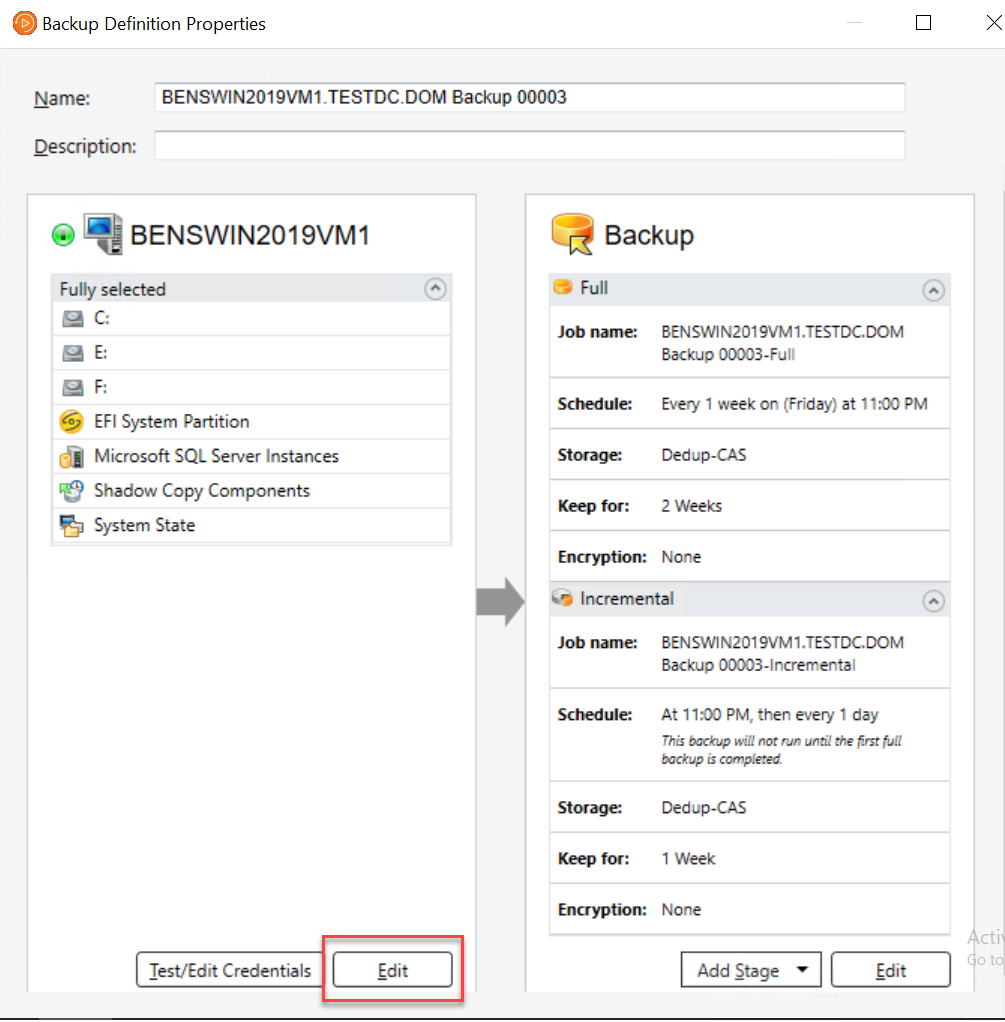
.
-
Do one of the following:
To reorder the servers in a backup definition with multiple servers In the left pane of the Backup Selections dialog box, use the up and down arrows to configure the order of the servers or applications. Backup Exec backs up the servers or applications at the top first. To reorder the backup sources within a server Do the following\: - In the left pane of the Backup Selections dialog box, select the server that contains the resources that you want to reorder. - In the right pane of the Backup Selections dialog box, select the Selection Details tab. - To reorder the backup sources when a server is selected in its entirety, you must insert the individual selections that you want to reorder: Click Insert , and then select Insert Selection . Select the backup source that you want to reorder, and then click OK . Repeat this step for each backup source that you want to reorder. - In the right pane of the Backup Selections dialog box, use the up and down arrows to configure the order of the backup sources. Backup Exec backs up the backup sources at the top first. - Click OK . -
Click OK.
More Information
Related information