
Backing up data
When you want to back up data, you create a container that is called the backup definition.
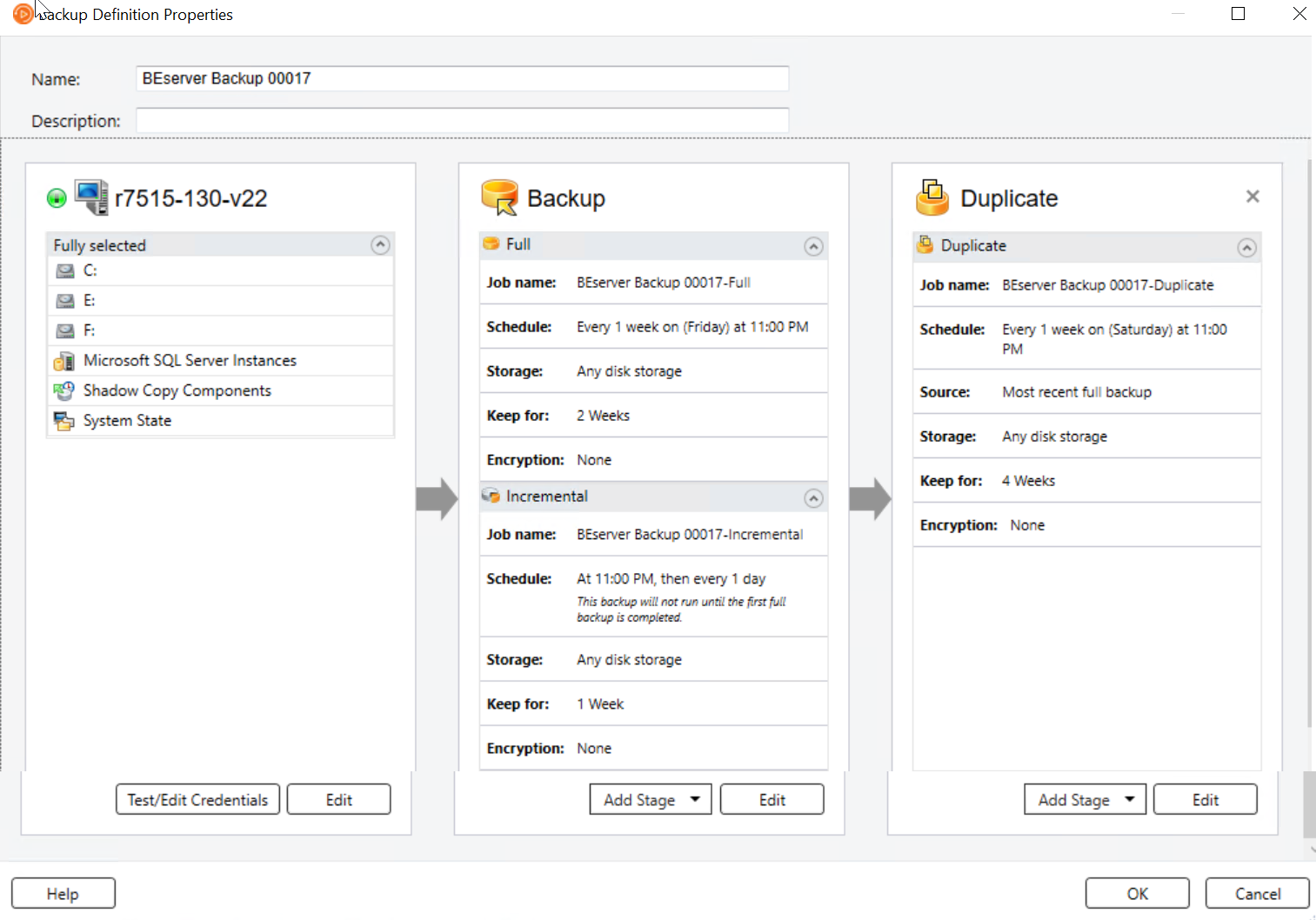
Backup definitions contain backup selections, job templates, and stages.
Table: Backup definition contents
| Item | Description |
|---|---|
| Backup selections | Backup selections include any servers, volumes, or data that you have selected to back up. |
| Job templates | Job templates are the collection of settings that Backup Exec uses to create jobs. Backup job settings can include scheduling options, storage device options, or backup methods for selected types of data, for example. When you want to run a backup, Backup Exec combines the job template with the backup selections to create a backup job that runs according to the options that you specified. |
| Backup definitions always contain one job template that uses the full backup method, but recurring jobs can also contain incremental, differential, or data-specific job templates. | |
| See Backup methods in Backup Exec . | |
| Stages | Stages are optional tasks that you can run with backup jobs. Backup definitions can contain one or more stages. You can create stages that duplicate your backup data or create virtual machines with your backup data. |
Figure: Backup Definition (with backup selections, full and incremental backup job templates, and a duplicate stage)
Backup Exec offers many choices for creating backup jobs to protect your data, including the following:
-
Create a recurring backup definition to back up the full or partial contents of a single server or multiple servers
If you select to back up multiple servers or applications, you can create separate backup definitions for each server or application. Alternatively, you can create one backup definition that includes all servers and applications. If you create separate backup definitions, it is easier to identify problems when backup jobs fail. Also, if an issue arises with one server that causes a backup job to fail, the other backup jobs can still complete successfully. If you create one backup definition that includes all of your servers and applications, it takes less work to monitor the job status. You can select a default method for backing up multiple servers in the Backups dialog box in the Backup Exec Settings.
Note: You cannot back up multiple servers with a synthetic backup job or a conversion to virtual job.
-
Create a backup definition to run only once
A one-time backup only runs once without any recurring instances. You may want to use a one-time backup to create a baseline for a server before you upgrade it or install new software. After Backup Exec finishes running a one-time backup, it deletes the job rather than saving it with your recurring jobs. If you want to view information about a one-time backup after the job is complete, you can still view its job history.
Warning: Data lifecycle management deletes all expired backup sets that are created by a one-time backup job. DLM does not keep the last backup set after the retention date expires if the backup set is from a one-time backup. To prevent the backup sets from being automatically deleted, you can manually retain specific backup sets or you can change the expiration date of the backup set. SeeHow data lifecycle management (DLM) deletes expired backup sets on disk-based storage.
-
Create a new backup definition using an existing backup definition's settings
If you want to create a backup definition that is similar to an existing backup definition, you can apply the existing definition's settings to a new definition. Any backup methods, job settings, and stages are copied into a new backup definition for the server or servers that you selected to back up. All that you have to do is select the backup selections. You can override any of the job settings, if necessary.
-
Create a server group out of similar computers and back up the entire group at once
Server groups are a way to organize and view server information in the list of servers. You can create server groups based on any criteria. You may want to group servers with a specific type of data or servers that reside in a specific location.
You can also edit existing backup definitions to modify their schedules, backup selections, or other settings.
To protect remote computers, you must install the Agent for Windows on the remote computer. The Agent for Windows is a system service that runs on Windows servers and workstations. It provides efficient backup processing by locally performing the tasks that, in typical backup technologies, require extensive network interaction.
For information about the best practices to use backup jobs, refer to the Backup Exec Best Practices.
To back up data
-
Select one of the following methods to back up data:
To create recurring backup jobs Complete the following steps\: - On the Backup and Restore tab, select the server, servers, or server group that you want to back up. - Right-click the server, servers, or server group. - On the Backup menu, select the backup option that you want to use. To create one-time backups Complete the following steps\: - On the Backup and Restore tab, select the server, servers, or server group that you want to back up. - In the Backups group, click One-Time Backup . - Select the backup option that you want to use. To create a new backup definition using the settings from an existing backup definition Complete the following steps\: - On the Backup and Restore tab, right-click the server or servers that you want to back up. You cannot reuse a backup definition's settings to create a backup job for a server group. - On the Backup menu, select Create a New Backup Using the Settings from an Existing Backup . - On the Backup Job Selection dialog box, select the backup definition that contains the settings that you want to copy. - Click OK . To create a backup definition for a server group Complete the following steps\: - On the Backup and Restore tab, in the Groups pane, right-click the server group that you want to back up. - On the Backup menu, select the backup option that you want to use. -
In the Name field, type a name for the backup definition.
-
In the Description field, type a description for the backup definition.
-
In the Selections box, click Edit.
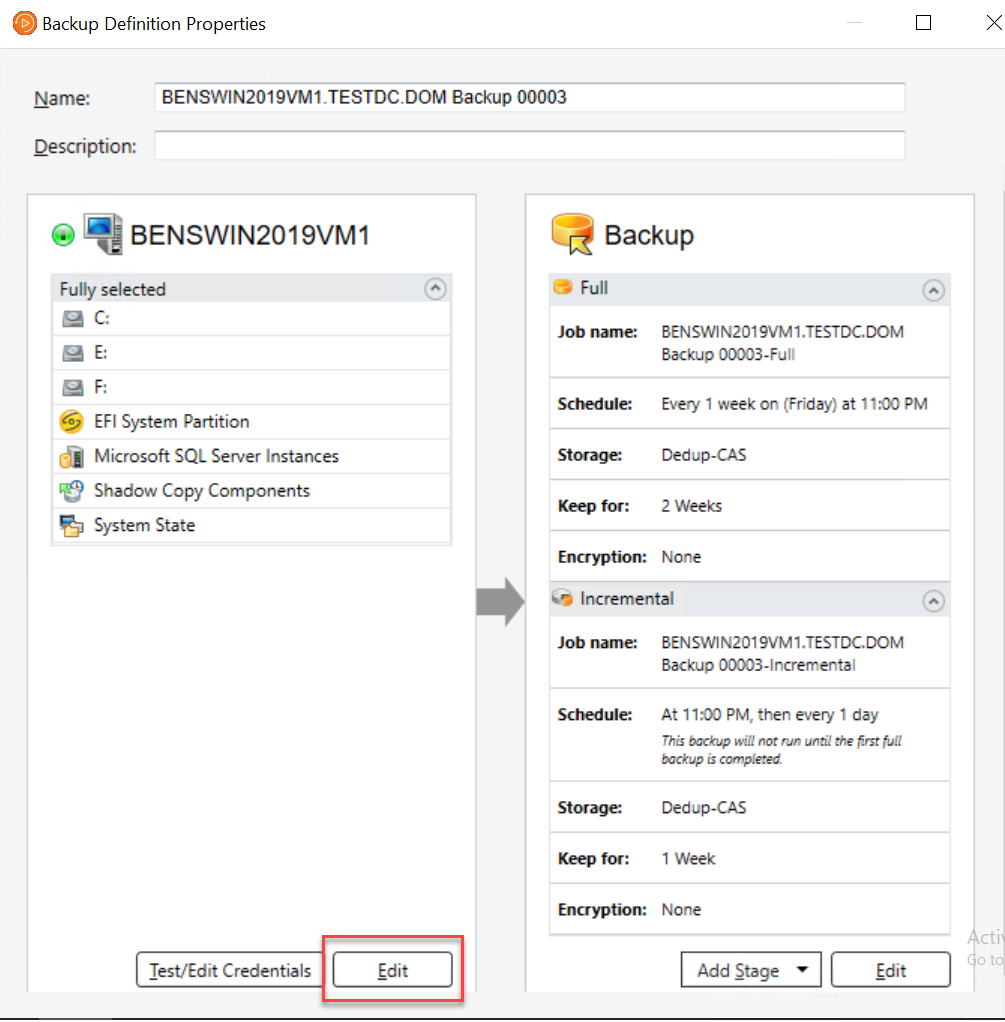
-
To add additional servers to the backup definition:
-
Click Add.
-
Select the server or servers that you want to add to the backup definition.
-
Click OK.
-
-
Select the data that you want to back up.
Servers are selected in their entirety by default. If you do not want to back up the entire server, double-click the server name to see all of the contents. Select the check boxes for each item that you want to back up.
Note: Deselecting a server's critical system components creates backup sets that cannot be used for some restore scenarios. SeeAbout backing up critical system components.
-
(Optional) To prioritize the backup of specific volumes or virtual machines, select the item, and then click Tag as business-critical.
-
Click OK.
-
In the Backup box, click Edit.Note: If you copied the backup settings from an existing backup definition or if you do not want to change any of the existing or default settings, you can skip to step 13
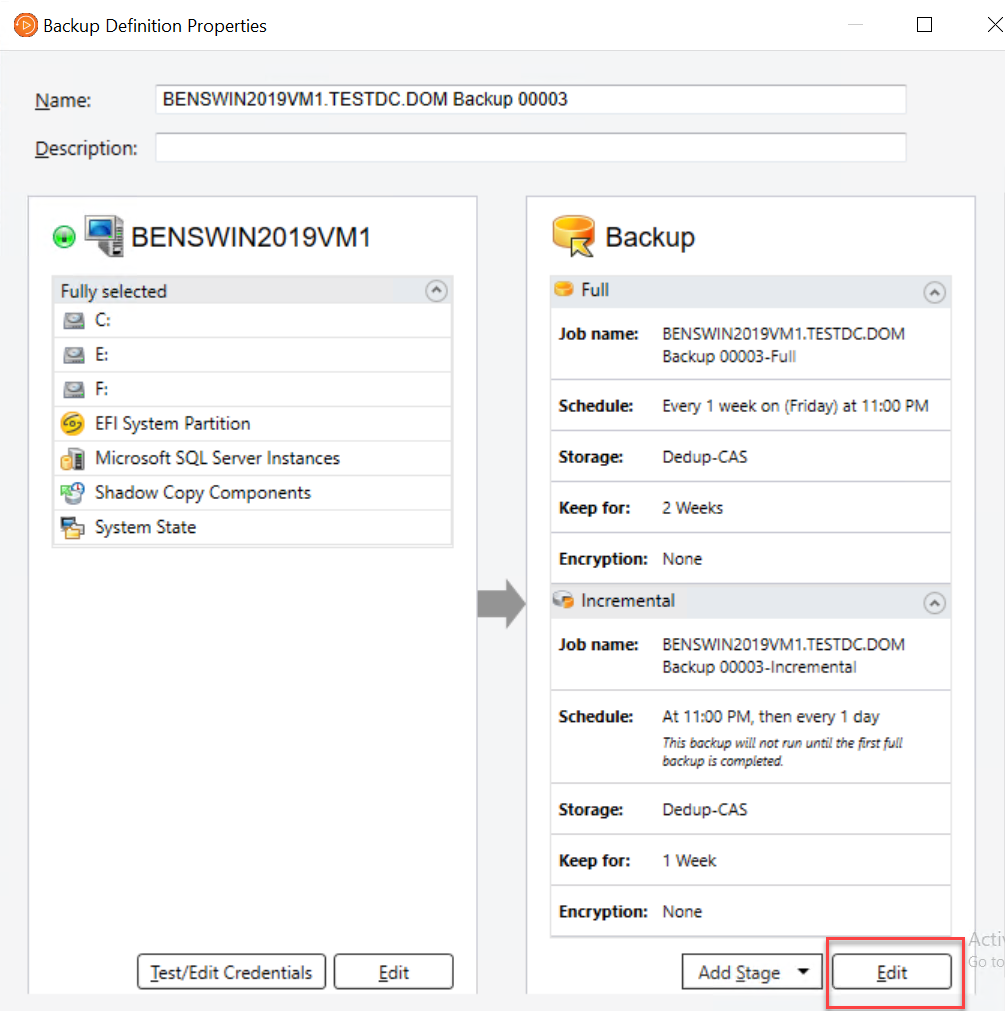
-
In the left pane, click Schedule , and then select when you want the backup job or jobs to run.
-
In the left pane, click Storage , and then select the storage device that you want to use for the backup job or jobs.
-
In the left pane, select any additional options that apply to the backup job or jobs.
The remaining options in the left pane are optional. The options vary depending on what you selected to back up.
For example, you might want to set up notifications so that users can receive email or texts regarding this backup definition.
| Network | Select this option to specify the network interface that Backup Exec uses to access remote computers. |
|---|---|
| See Configuring network options for backup jobs . | |
| Notification | Select this option to configure Backup Exec to notify specified recipients when the backup job is completed. |
| Each backup job and stage can be configured with different notification recipients. Backup Exec can notify people by email or text message. | |
| See Notification options for jobs . | |
| Test Run | Select this option to configure a test job that automatically tests storage capacity, credentials, and media integrity. |
| The test job can help you determine if there are any problems that might keep the backup job from completing successfully. | |
| See Configuring automatic test run jobs for backup jobs . | |
| Verify | Select this option to create a job that automatically verifies whether all of the data was successfully backed up when the job is completed. |
| A verify job can also help you determine whether the media you use is defective. | |
| See Configuring automatic verify operations for backup jobs . | |
| Instant GRT | Select this option to configure the Instant GRT or the full catalog operation for any GRT-enabled jobs. You can choose to run a full catalog operation immediately after the backup job finishes, schedule the full catalog operation for another time, or run an Instant GRT operation as part of the backup job. |
| See Configuring Instant GRT and full catalog options to improve backup performance for GRT-enabled jobs . | |
| Advanced Open File | Select this option to configure the snapshot settings that Backup Exec uses to process the backup job. Snapshot technology lets Backup Exec capture any files that are open when a backup job runs. |
| You can also enable checkpoint restart, which lets you resume interrupted backup jobs. | |
| See Configuring Advanced Open File options for backup jobs . | |
| See Configuring checkpoint restart . | |
| Advanced Disk-based Backup | Select this option to configure off-host backup |
| processing for the backup job. | |
| See Configuring off-host backup options for a backup job . | |
| Pre/Post Commands | Select this option to configure any commands that you want to run either before the backup job begins or after the backup job is completed. |
| See Configuring pre/post commands for backup or restore jobs . | |
| Microsoft 365 | Select this option to configure parallel streams and job settings that you want to use for Microsoft 365 backups. |
| Files and Folders | Select this option to configure how Backup Exec processes file system attributes such as junction points and symbolic links. |
| See Configuring file and folder options for backup jobs . | |
| Enterprise Vault | Select this option to configure Enterprise Vault options. |
| See Enterprise Vault backup options . | |
| Linux and Macintosh | Select this option to configure options for any Linux or Machintosh computers that are included in the backup job. |
| See Linux and Unix backup options . | |
| Microsoft Active Directory | Select this option to configure options for any Microsoft Active Directory data that is included in the backup job. |
| See Microsoft Active Directory backup job options . | |
| Microsoft Exchange | Select this option to configure options for any Microsoft Exchange data that is included in the backup job. |
| See Backing up Exchange data . | |
| Virtual Machines | Select this option to configure options for any virtual machines that are included in the backup job. |
| See Backing up Microsoft Hyper-V virtual machines . | |
| See Backing up VMware virtual machines . | |
| Microsoft SharePoint | Select this option to configure options for any Microsoft SharePoint data that is included in the backup job. |
| See Backing up Microsoft SharePoint data . | |
| Microsoft SQL | Select this option to configure options for any Microsoft SQL data that is included in the backup job. |
| See Backing up SQL databases and transaction logs . | |
| NDMP | Select this option to configure options for any NDMP data that is included in the backup job. |
| See NDMP backup options for NDMP servers . | |
| Oracle | Select this option to configure options for any Oracle data that is included in the backup job. |
| See Oracle backup options . | |
| Exclusions | Select this option to exclude specific files or specific types of files from backups. |
| See Excluding files from backups . |
-
When you are finished selecting all applicable options for the backup definition, click OK.
-
(Optional) You can add stages to this backup definition to duplicate your data or create virtual machines with your backup data.Note: You cannot add a stage to one-time backups.
-
Click OK to save the backup definition settings.
The backup jobs and stages run at the time that you selected.
More Information