
About the Backup Exec Administration Console
Use the Backup Exec Administration Console to run backups, restore data, monitor jobs, configure storage, and run reports.
Figure: Backup Exec Administration Console
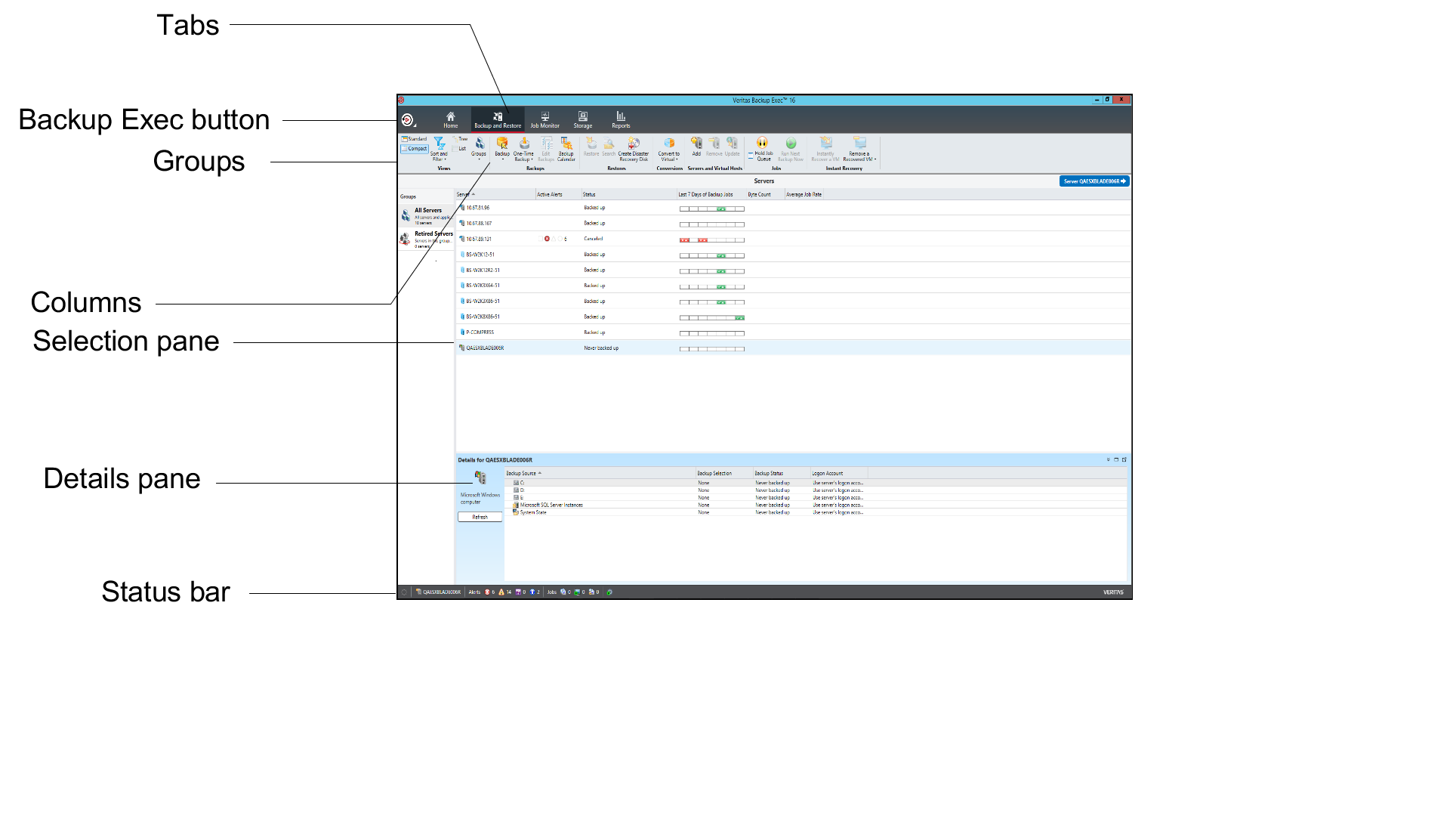
The administration console screen includes the following components:
Table: Administration console components
| Item | Description |
|---|---|
| Backup Exec button | The Backup Exec button displays on the upper left side of the administration console. To display the options in the Backup Exec button, click the Backup Exec button, select the menu name, and then select an option. You can launch Backup Exec operations by clicking options from a menu. |
| Tabs | Tabs at the top of the screen let you navigate Backup Exec. |
| You can access the following views from the navigation bar: | |
| - Home . Provides quick access to the Backup Exec information that you use frequently. Customize the Home view by adding or deleting items. | |
| - Backup and Restore . Create a backup or restore job. | |
| - Job Monitor . Monitor and manage backup, restore, installation, and storage operation jobs. | |
| - Storage . Configure storage, run storage operations, and manage media. | |
| - Reports . View, print, save, and schedule reports about the Backup Exec server, operations, and device and media usage, and create custom reports. View reports in Backup Exec in PDF or HTML format, and save and print reports in PDF, XML, HTML, Microsoft Excel (XLS), and comma-separated value (CSV) formats | |
| Groups | Groups display on the tabs in the administration console, and contain the commands that initiate actions such as creating a new backup job or configuring storage. The commands in the groups are dynamic, changing according to the selection. Some commands are unavailable until you select an item on the console screen or until you run a prerequisite task. |
| Columns | Customize columns by doing any of the following actions\: |
| - Drag and drop columns to change their location. | |
| - Right-click a column heading to select the columns to display or to sort and filter the column content. | |
| - Click the column heading to change the order of the column. For example, names of reports display in alphabetical order by default. To display report names in reverse alphabetical order, click the Name column heading on the Reports view. | |
| Selection pane | Select items to work with, such as servers to back up or restore. |
| Details pane | Additional details appear for the server that you select in the list of servers. The Details pane lists the resources for the selected server and the selection status, backup status, and logon account information for each resource. |
| When you select a Hyper-V host or VMware host in the list of servers, the Details pane includes the following details: | |
| - The last 7 days of backup jobs | |
| - The date of the last backup | |
| - The date of the next scheduled backup | |
| You can also restore data and filter the list of guest virtual machines from this pane. | |
| Status bar | The status bar appears on the bottom of the administration console and provides information about the Backup Exec server, jobs that are running or are scheduled, alerts, and services. |
| Refresh | Click F5 to refresh the user interface on the administration console. |
Related information